
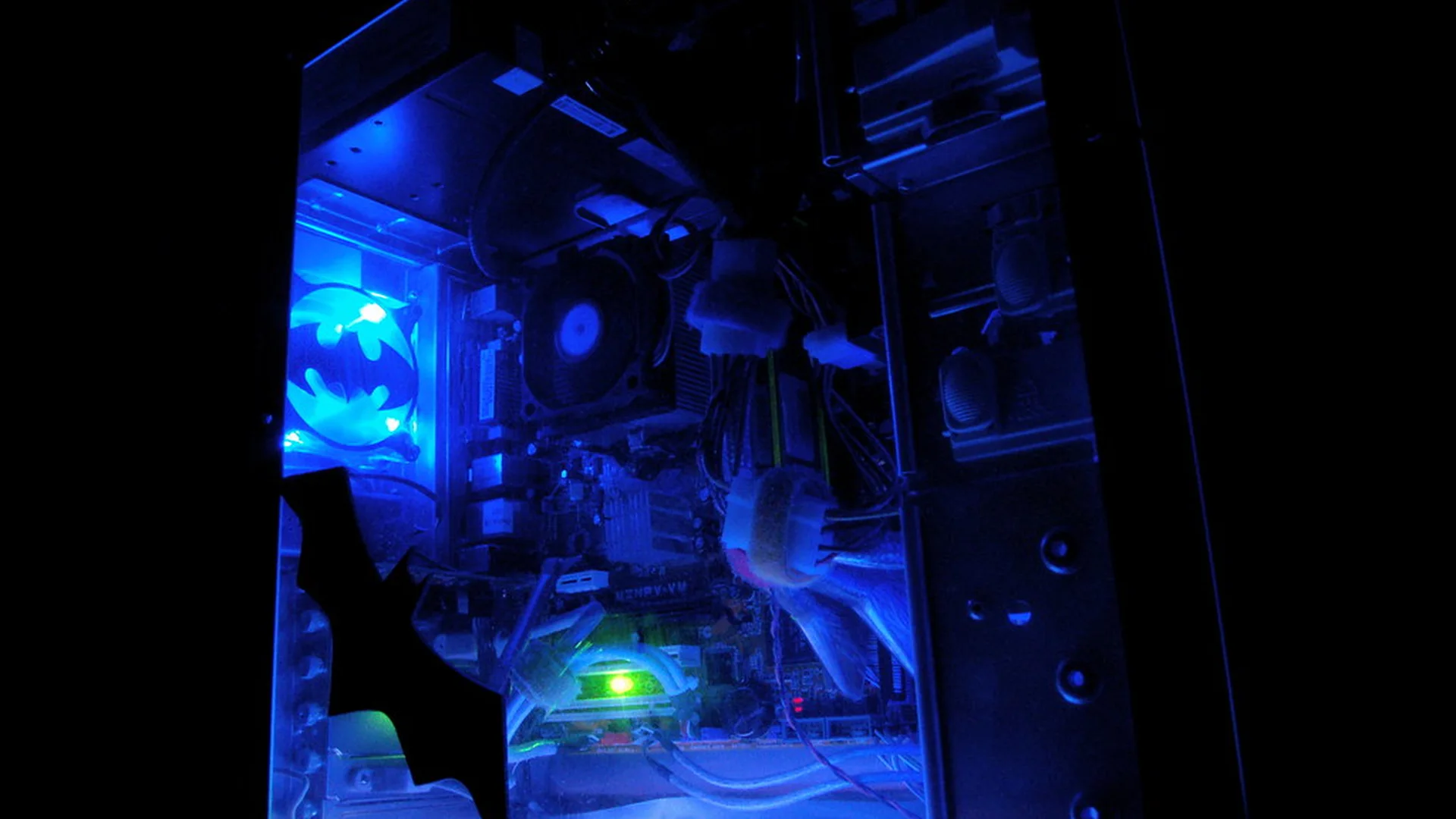
A well-built laptop or desktop can comfortably last six to eight years, sometimes longer, but most computers do not make it that far without help. In our experience testing and living with dozens of machines, the majority of early failures trace back to neglect rather than age: dust-choked fans, drives left completely full, or a shutdown skipped one too many times during a power flicker. None of the fixes below take more than a few minutes, and most cost nothing at all.
Keep It Clean
Dust is the quiet enemy of every computer. It builds up on fans and heat sinks, traps heat, and forces the system to work harder just to stay at a safe temperature. For desktops, plan on a light cleaning with compressed air every three to six months, more often if you have pets or live somewhere dusty. For laptops, focus on the vents and the underside intake, since those are the areas that clog first and are the easiest to reach without opening the case.
Manage Heat
Heat is the fastest way to shorten a computer's working life, and most of it comes down to airflow. Never run a laptop on a bed, couch cushion, or pillow — soft surfaces block the intake vents on the bottom and can cause the fans to run constantly, or worse, let the system quietly overheat without you noticing. A hard, flat surface, or a simple laptop stand, makes a bigger difference than people expect. For desktops, make sure nothing is pressed up against the intake or exhaust vents, including cables, furniture, or a wall placed too close behind the case.
Update Software Regularly, But Not Blindly
Operating system and driver updates often include real performance and security fixes, and skipping them for months at a time tends to cause more problems than it avoids. That said, updating everything the moment it is available is not necessary either — it is reasonable to wait a few days after a major operating system update to see whether other users report problems before installing it yourself. Driver updates for your graphics chip and storage controller are usually worth prioritizing, since those tend to carry the most noticeable stability improvements.
Watch Your Storage
A drive that is packed near its full capacity, especially a solid-state drive, tends to slow down and can shorten the drive's own lifespan by leaving it less room to manage data efficiently in the background. Aim to keep at least 10 to 15 percent of your storage free. A periodic disk cleanup — clearing old downloads, duplicate files, and applications you no longer use — takes a few minutes and can meaningfully improve everyday responsiveness on an older machine.
Handle It With Care
Some of the most common repair visits we hear about have nothing to do with software or dust — they come down to everyday handling. Carrying a laptop by the screen instead of the base puts strain on the hinges over time, and a drink placed next to the keyboard is one accidental bump away from an expensive repair. Charging cables are another quiet source of damage: yanking a cable out at an angle instead of unplugging it straight wears down the port faster than normal use ever would.
None of this requires being overly cautious with your own equipment day to day. It just means treating the obvious risk points — hinges, ports, and the area right around the keyboard — with a little more attention than the rest of the machine.
Protect Against Power Issues
A cheap surge protector is one of the best insurance policies available for a computer, and a battery backup, or UPS, goes a step further by keeping a desktop running long enough to save your work and shut down safely during a power outage. Hard, unexpected shutdowns are a common and often overlooked cause of file corruption and, over time, storage drive damage. If your area sees frequent power flickers or storms, a UPS is a worthwhile investment even for a modest home setup.
Back Up Before Something Goes Wrong
No maintenance routine eliminates the risk of a drive failure entirely, which is why a backup matters as much as any cleaning schedule. The 3-2-1 rule is a reliable standard: three copies of your important files, stored on two different types of storage, with at least one copy kept somewhere physically separate from your main computer. See our guide on SSD versus HDD storage if you are deciding what to back up to.
A Simple Maintenance Schedule
If a full routine feels like too much to remember, breaking it up by frequency makes it easier to actually stick with.
- Monthly: restart fully rather than only sleeping, check for pending updates, and clear out unnecessary downloads.
- Quarterly: clean dust from vents and fans, review installed applications and remove what you no longer use, and confirm your backup is actually running.
- Yearly: test restoring a file from your backup, check battery health on laptops, and consider a deeper internal cleaning for desktops.
None of this requires technical expertise, just consistency. A computer that gets this level of basic care will typically stay usable years longer than one that only gets attention after something has already gone wrong.